If you’re using FluxCD to manage Helm releases, you’ve likely debugged a failed deployment caused by a typo in your values block. Maybe you wrote replicas instead of replicaCount, or nested an option one level too deep. These mistakes are easy to make and hard to catch-often you don’t discover them until Flux fails to reconcile.
The fix? Bring the same LSP-powered autocomplete and validation you use for application code to your HelmRelease files.
The Problem with HelmRelease Values
A typical FluxCD HelmRelease looks like this:
apiVersion: helm.toolkit.fluxcd.io/v2
kind: HelmRelease
metadata:
  name: my-app
  namespace: default
spec:
  interval: 5m
  chart:
    spec:
      chart: my-chart
      sourceRef:
        kind: HelmRepository
        name: my-repo
  values:
    replicaCount: 3
    image:
      repository: myapp
      tag: v1.2.3
    resources:
      limits:
        memory: 512Mi
Your editor validates the HelmRelease structure — apiVersion, kind, spec.chart, but treats the values block as an opaque blob. No autocomplete, no type checking, no validation.
If your chart includes a values.schema.json, FluxCD will fail the reconciliation when values don’t match1—a useful guardrail, but one you only discover at deploy time. The setup below brings that same validation into your editor, so you catch errors as you type.
The Solution: Composite JSON Schemas
Create a JSON schema that combines the FluxCD HelmRelease structure with your chart’s values schema, then configure your editor’s YAML language server to use it.
What we need:
- A JSON schema for your Helm chart’s values
- A template schema for the HelmRelease wrapper
- A way to combine them so
valuesreferences your chart’s schema - Editor configuration to apply the right schema to each file
Step 1: Get Your Helm Chart Schema
For Local Charts
If your chart doesn’t include a values.schema.json, generate one with helm-schema-gen:
$ helm plugin install https://github.com/rhoat/helm-schema-gen.git
$ helm schema-gen generate ./values.yaml --destination values.schema.json
Generated schemas will need refinement. Add enum constraints for limited values, mark required fields, and add descriptions for better autocomplete. A JSON Schema field can have both a $ref and local constraints like type or enum, letting you layer chart-specific restrictions on top of Kubernetes definitions.
For Remote Charts
When using charts from external repositories (cert-manager, Argo CD, etc.), you’ll need to extract or generate the schema locally.
If the chart includes a schema, pull it down:
$ helm repo add jetstack https://charts.jetstack.io
$ helm pull jetstack/cert-manager --untar --destination ./vendor-charts
$ ls ./vendor-charts/cert-manager/values.schema.json
If the chart lacks a schema, generate one from its default values:
$ helm repo add argo https://argoproj.github.io/argo-helm
$ helm show values argo/argo-cd > ./vendor-charts/argo-cd-values.yaml
$ helm schema-gen generate ./vendor-charts/argo-cd-values.yaml \
    --destination ./vendor-charts/argo-cd.schema.json
Step 2: Create the Composite Schema
The HelmRelease schema’s spec.values field references your chart’s schema. For the spec.chart field, you can either reference the official FluxCD HelmRelease schema or define it inline. Here’s a minimal example that focuses on values validation:
{
  "$schema": "http://json-schema.org/draft-07/schema#",
  "type": "object",
  "required": ["apiVersion", "kind", "metadata", "spec"],
  "properties": {
    "apiVersion": {
      "type": "string",
      "enum": ["helm.toolkit.fluxcd.io/v2", "helm.toolkit.fluxcd.io/v2beta1", "helm.toolkit.fluxcd.io/v2beta2"]
    },
    "kind": {
      "const": "HelmRelease"
    },
    "metadata": {
      "type": "object",
      "required": ["name"],
      "properties": {
        "name": { "type": "string" },
        "namespace": { "type": "string" }
      }
    },
    "spec": {
      "type": "object",
      "required": ["chart"],
      "properties": {
        "chart": {
          "$comment": "Reference the FluxCD schema for full chart spec validation, or use 'type: object' to allow any structure",
          "type": "object"
        },
        "interval": {
          "type": "string",
          "pattern": "^([0-9]+(\\.[0-9]+)?(ms|s|m|h))+$",
          "default": "5m"
        },
        "values": {
          "$comment": "The magic: reference your chart's values schema here",
          "$ref": "file:///absolute/path/to/charts/myapp/values.schema.json"
        }
      }
    }
  }
}
The $ref for values points to your chart’s schema, enabling validation and autocomplete. The chart field uses a simple type: object here since chart structure errors are caught by FluxCD at reconciliation time—the main win is validating values.
Step 3 (Optional): Automate with a Makefile
Skip this if you’re only dealing with one chart. But if you’re managing multiple charts, or just prefer not to repeat yourself - a Makefile keeps schema generation consistent:
# Configuration
CHARTS_DIR := ./charts
FLUX_SCHEMAS_DIR := ./flux-schemas
TEMPLATE_FILE := $(FLUX_SCHEMAS_DIR)/.helmrelease-template.json

# Find all chart directories with schemas
CHART_DIRS := $(shell find $(CHARTS_DIR) -name "values.schema.json" -exec dirname {} \;)

# HelmRelease template with CHART_SCHEMA_REF placeholder
define TEMPLATE_CONTENT
{
  "$$schema": "http://json-schema.org/draft-07/schema#",
  "type": "object",
  "required": ["apiVersion", "kind", "metadata", "spec"],
  "properties": {
    "apiVersion": {
      "type": "string",
      "enum": ["helm.toolkit.fluxcd.io/v2", "helm.toolkit.fluxcd.io/v2beta1", "helm.toolkit.fluxcd.io/v2beta2"]
    },
    "kind": { "const": "HelmRelease" },
    "metadata": {
      "type": "object",
      "required": ["name"],
      "properties": {
        "name": { "type": "string" },
        "namespace": { "type": "string" }
      }
    },
    "spec": {
      "type": "object",
      "required": ["chart"],
      "properties": {
        "interval": {
          "type": "string",
          "pattern": "^([0-9]+(\\\\.[0-9]+)?(ms|s|m|h))+$$"
        },
        "values": { "$$ref": "CHART_SCHEMA_REF" }
      }
    }
  }
}
endef
export TEMPLATE_CONTENT

.PHONY: all clean generate-composite-schemas

all: generate-composite-schemas

$(FLUX_SCHEMAS_DIR):
	@mkdir -p $(FLUX_SCHEMAS_DIR)

$(TEMPLATE_FILE): $(FLUX_SCHEMAS_DIR)
	@echo "Creating HelmRelease template..."
	@echo "$$TEMPLATE_CONTENT" > $(TEMPLATE_FILE)

generate-composite-schemas: $(TEMPLATE_FILE)
	@echo "Generating composite schemas..."
	@for chart_dir in $(CHART_DIRS); do \
		chart_name=$$(basename $$chart_dir); \
		values_schema_path="$$chart_dir/values.schema.json"; \
		composite_schema_path="$(FLUX_SCHEMAS_DIR)/$$chart_name-helmrelease.schema.json"; \
		if [ -f "$$values_schema_path" ]; then \
			echo "  - Generating $$chart_name-helmrelease.schema.json"; \
			abs_values_schema_path=$$(realpath "$$values_schema_path"); \
			sed "s|CHART_SCHEMA_REF|file://$$abs_values_schema_path|g" \
				$(TEMPLATE_FILE) > "$$composite_schema_path"; \
		fi; \
	done
	@rm -f $(TEMPLATE_FILE)

clean:
	rm -rf $(FLUX_SCHEMAS_DIR)/*.schema.json
Running make generate-composite-schemas scans your charts directory and generates <chart-name>-helmrelease.schema.json for each chart with a values schema.
Step 4: Configure Your Editor
Tell your YAML language server which schema to use. Example for Helix (my editor of choice):
# ~/.config/helix/languages.toml

[[language]]
name = "yaml"
file-types = ["yaml", "yml"]
language-servers = ["yaml-language-server"]

[language-server.yaml-language-server.config.yaml]
completion = true
validation = true
hover = true
schemaStore.enable = true

[language-server.yaml-language-server.config.yaml.schemas]
"file:///path/to/flux-schemas/myapp-helmrelease.schema.json" = [
  "**/myapp/**/helmrelease*.yaml",
  "**/helmrelease*myapp*.yaml"
]
VS Code, Neovim, and other editors using yaml-language-server have similar configuration. Match the glob patterns to your file organization.
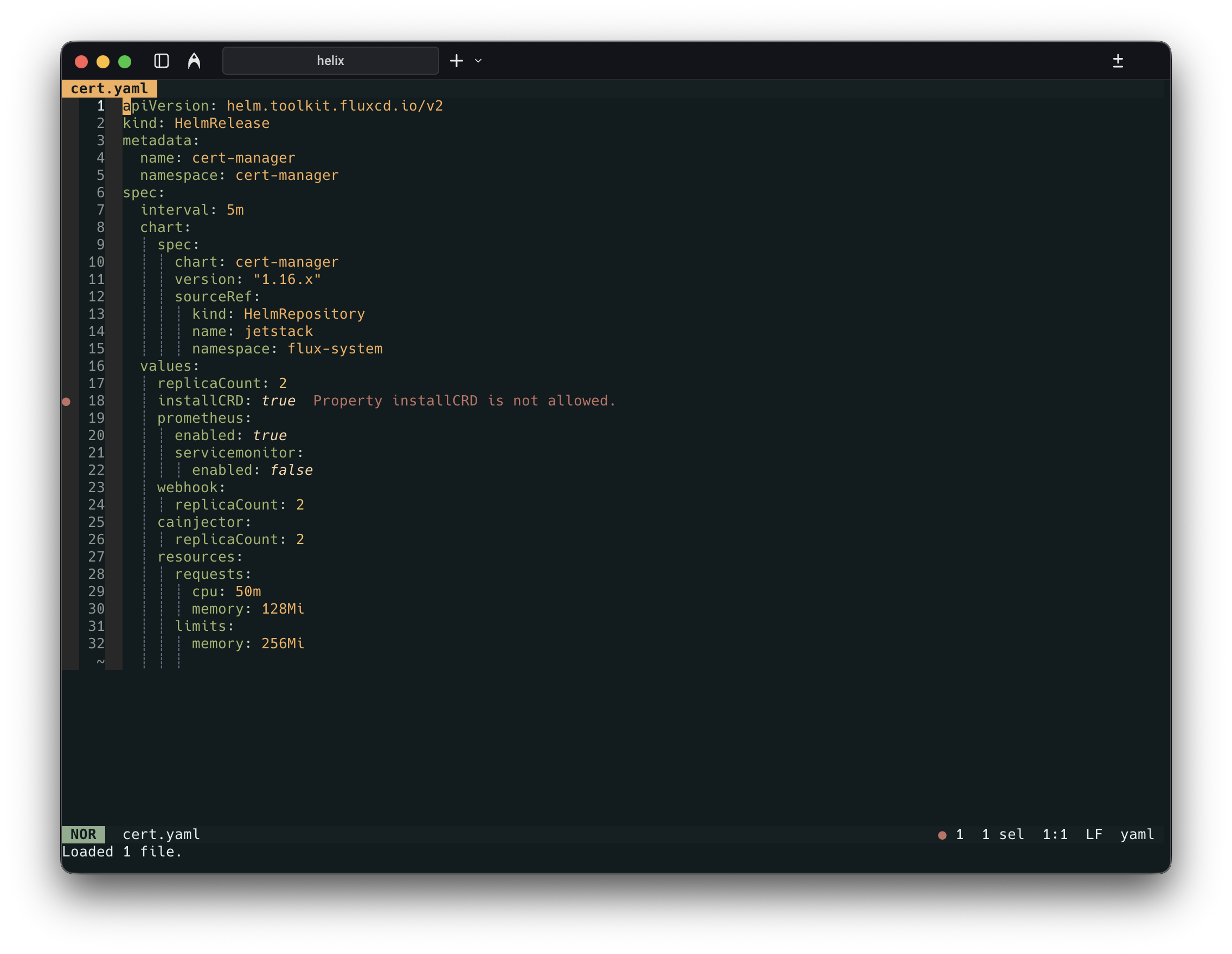

The Payoff
Once configured, your editor will:
- Autocomplete values — Suggestions from your chart’s schema with descriptions and defaults
- Validate as you type — Misspelled keys, wrong types, and missing fields caught immediately
- Show documentation on hover — Field descriptions, types, and allowed values
- Catch structural errors — Invalid
intervalformats, missingsourceRef, etc.
Conclusion
This setup takes about an hour initially but prevents deployment failures that consume entire afternoons. Autocomplete and real-time validation make HelmRelease authoring feel as fluid as writing code in a proper IDE.
The investment pays off most when managing multiple environments, working with a team, or using complex charts. Your future self will thank you.
-
FluxCD helm-controller validates values against the chart’s JSON Schema during install and upgrade. Disable with
spec.[install|upgrade].disableSchemaValidation. See the HelmRelease API reference. ↩︎